Roo Code Credits Overview
Roo Code is composed of a few products:
- Roo Code VS Code (the extension) is 100% free
- Roo Code Cloud Provider (the model provider) offers both free and paid models
- Roo Code Cloud Agents (the automous agents) are a paid feature as they incur infrastructure costs
In order to use paid models via our provider and to run Cloud agents, you need credits.
You can see the plans we offer and the most up-to-date pricing on our pricing page
What are credits?
Credits are just pre-paid dollar amounts you can optionally buy to use the paid parts of the Roo Code suite. If you stick to free features and free models, you don't have to buy any credits.
Credits are shown in dollars, there's no shenanigans in converting it to obscure currencies you can't calculate.
How much do credits cost?
Our pricing page always has the latest on our plans and Cloud Agent pricing.
Model pricing can be found in the provider page of our website.
We don't include prices here just to make sure they're always up-to-date.
How are credits and the monthly subscription related?
The monthly subscription to the Team plan simply unlocks advanced functionality. It doesn't include any credits. And the free plan doesn't have any recurring subscription fees, you only pay for the credits you purchase.
How do I get free credits or free minutes or free tokens?
When you sign up for a Roo Code Cloud account, you'll be given a number of "Free Minutes" to try the product out (you'll see a cute icon). Those free minutes cover both the Cloud Agent run time and inference via the Roo Code Cloud provider (both of which normally cost credits). Those can't be used in the extension – they're there for you to try the magic of Cloud Agents.
If you want free inference in the extension, choose a free model (or another provider which may offer it to you for free).
How can I buy credits?
Single purchase
From your Roo Code Cloud account, to a one-time purchase:
-
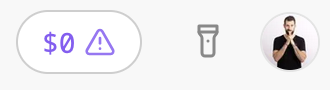
Click on the credit balance display in the top right
-
Choose "Buy Credits"
-
Enter the amount you want to buy and follow the flow
-
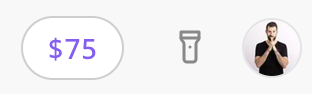
You'll get a confirmation email and the balance will show in the same place in the UI
Auto top-up
To make sure you never run out of credits, you can set up Auto top-up:
-
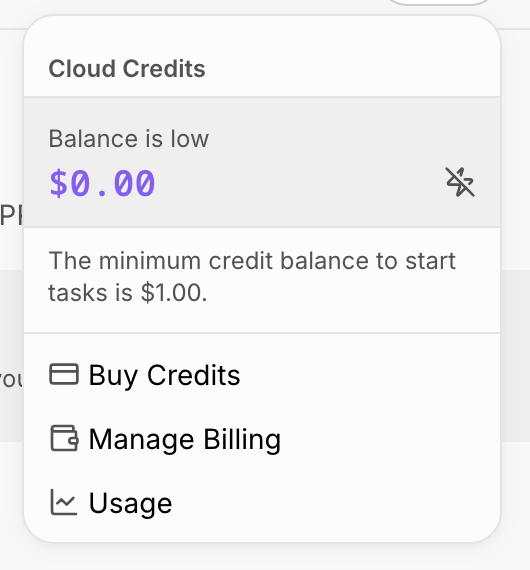
Click on the same credit balance display
-
Click on the ⚡ icon
-
Enable the option and configure the threshold and amount to buy
-
Click save and you're done
If you change your mind, just follow the same steps while turning it off.
You can also access all of this from your Billing page (User Avatar menu → Billing and Credits).